> ## Documentation Index
> Fetch the complete documentation index at: https://docs.getchatads.com/llms.txt
> Use this file to discover all available pages before exploring further.
# Team & Roles
> Invite teammates, control what each role can do, and review your team's activity log
Every ChatAds workspace is a **team**: the widget configuration, monetization settings, analytics, and billing all belong to the team, and every person you invite works on that shared setup. To open team settings, click the **gear icon** in the top-right of the dashboard and choose **Team**.
## Inviting Team Members
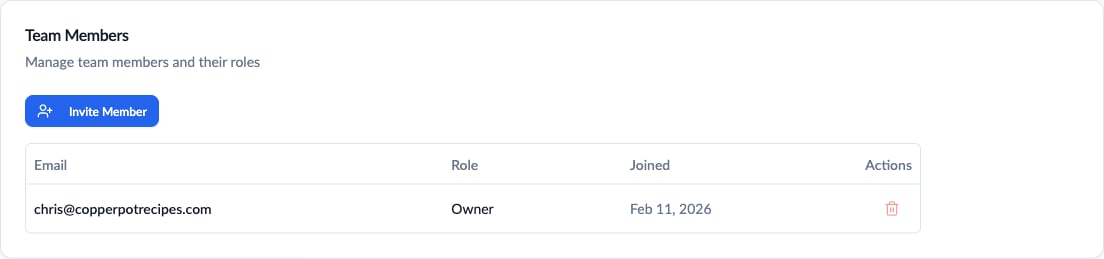 Click **Invite Member**, enter the person's email address, and pick a role. They receive an email with an acceptance link; until they accept, the row shows a **Pending** badge and you can resend the invitation from the table. Invitations expire after 14 days.
Owners and admins can invite members. Admins can assign the Admin, Member, or Viewer role; only an owner can grant the Owner role.
## Roles & Permissions
ChatAds has four roles. The Team page shows this same reference table:
Click **Invite Member**, enter the person's email address, and pick a role. They receive an email with an acceptance link; until they accept, the row shows a **Pending** badge and you can resend the invitation from the table. Invitations expire after 14 days.
Owners and admins can invite members. Admins can assign the Admin, Member, or Viewer role; only an owner can grant the Owner role.
## Roles & Permissions
ChatAds has four roles. The Team page shows this same reference table:
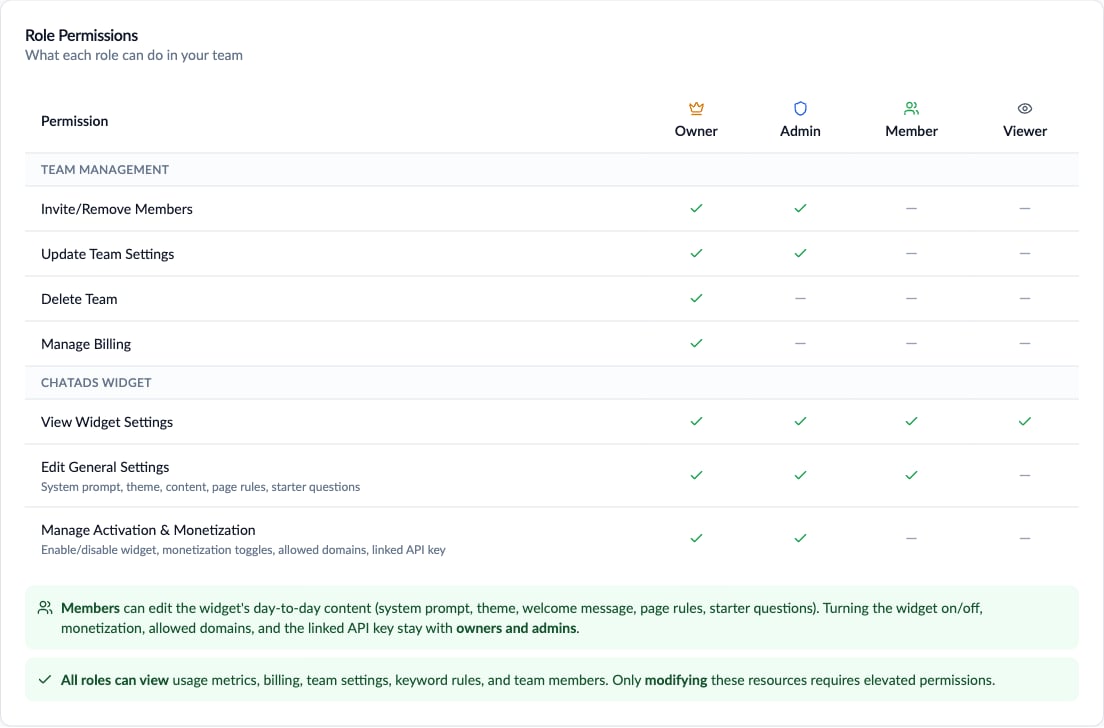 | Permission | Owner | Admin | Member | Viewer |
| ------------------------------------------------------------------------------------------------------- | ----- | ----- | ------ | ------ |
| Invite / remove members | Yes | Yes | - | - |
| Update team settings (e.g. team name) | Yes | Yes | - | - |
| Manage billing and payment methods | Yes | - | - | - |
| Delete the team | Yes | - | - | - |
| View widget settings, usage, and conversations | Yes | Yes | Yes | Yes |
| Edit general widget settings (prompt, theme, page rules, starter questions) | Yes | Yes | Yes | - |
| Manage activation & monetization (widget on/off, monetization toggles, allowed domains, affiliate tags) | Yes | Yes | - | - |
A useful way to think about it:
* **Owner** - full control, including billing and team deletion. Every team needs at least one.
* **Admin** - runs the team day to day: members, widget activation, monetization, domains. No billing.
* **Member** - edits the widget's content and behavior (system prompt, theme, page rules, starter questions) but can't touch activation, monetization, or membership. A good fit for writers and site editors.
* **Viewer** - read-only. Sees usage, conversations, settings, and members without being able to change anything. A good fit for stakeholders who just need visibility.
### Changing Roles & Removing Members
Owners and admins change roles from the dropdown in the members table. A few guardrails apply:
* You can't change your own role.
* Only an owner can change another owner's role.
* The last owner can't be removed or leave; promote someone else to Owner first.
## Team Name & Team ID
The **Team Information** card holds your team name (shown in the dashboard and invitation emails) and your **Team ID**. The ID is only used for support: include it when you email [team@getchatads.com](mailto:team@getchatads.com) so we can find your account immediately.
## Activity Log
Every meaningful account action is recorded in an audit trail. Click **View Activity** on the Team page (or the gear icon > Team > Activity Log) to see it:
| Permission | Owner | Admin | Member | Viewer |
| ------------------------------------------------------------------------------------------------------- | ----- | ----- | ------ | ------ |
| Invite / remove members | Yes | Yes | - | - |
| Update team settings (e.g. team name) | Yes | Yes | - | - |
| Manage billing and payment methods | Yes | - | - | - |
| Delete the team | Yes | - | - | - |
| View widget settings, usage, and conversations | Yes | Yes | Yes | Yes |
| Edit general widget settings (prompt, theme, page rules, starter questions) | Yes | Yes | Yes | - |
| Manage activation & monetization (widget on/off, monetization toggles, allowed domains, affiliate tags) | Yes | Yes | - | - |
A useful way to think about it:
* **Owner** - full control, including billing and team deletion. Every team needs at least one.
* **Admin** - runs the team day to day: members, widget activation, monetization, domains. No billing.
* **Member** - edits the widget's content and behavior (system prompt, theme, page rules, starter questions) but can't touch activation, monetization, or membership. A good fit for writers and site editors.
* **Viewer** - read-only. Sees usage, conversations, settings, and members without being able to change anything. A good fit for stakeholders who just need visibility.
### Changing Roles & Removing Members
Owners and admins change roles from the dropdown in the members table. A few guardrails apply:
* You can't change your own role.
* Only an owner can change another owner's role.
* The last owner can't be removed or leave; promote someone else to Owner first.
## Team Name & Team ID
The **Team Information** card holds your team name (shown in the dashboard and invitation emails) and your **Team ID**. The ID is only used for support: include it when you email [team@getchatads.com](mailto:team@getchatads.com) so we can find your account immediately.
## Activity Log
Every meaningful account action is recorded in an audit trail. Click **View Activity** on the Team page (or the gear icon > Team > Activity Log) to see it:
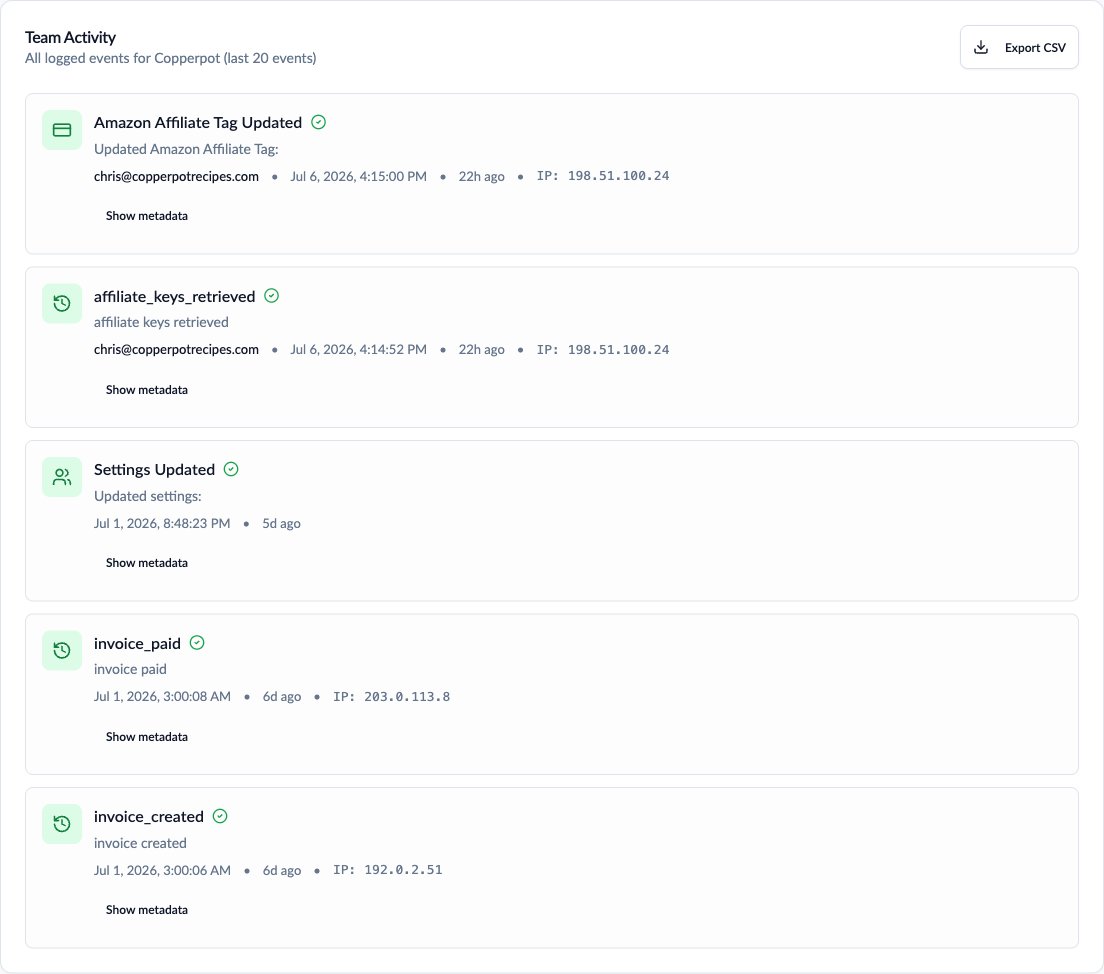 Logged events include member invitations, joins, and removals; role changes; settings and affiliate tag updates; plan changes; invoices and payment method changes; and data exports. Each entry records the event type, who did it, a timestamp, success or failure, the IP address and browser it came from, and event-specific details (expand **Show metadata** to see them).
The log is visible to **all team members**, and the **Export CSV** button downloads the recent history for compliance or record-keeping.
## Exporting Team Data
The **Export Team Data** card downloads your team configuration as JSON: settings, members, key metadata, and keyword rules. Secrets (keys and Amazon affiliate tags) are never included in the export.
This exports the team's configuration. For your chat and click data, use the CSV exports on the [Usage and Conversations tabs](/guides/analytics), and for your personal data see [Your Account](/guides/account-management#exporting-your-personal-data).
## Deleting Your Team
Only an owner can delete a team, from the **Danger Zone** at the bottom of the Team page. Deletion is a two-stage process:
1. The team enters a **30-day grace period**. Any active paid plan is canceled, and the owner can restore the team at any point during the window.
2. After 30 days, the team and all its data are permanently deleted.
Remove the widget snippet from your site when you delete the team; a deleted team's widget stops serving.
Logged events include member invitations, joins, and removals; role changes; settings and affiliate tag updates; plan changes; invoices and payment method changes; and data exports. Each entry records the event type, who did it, a timestamp, success or failure, the IP address and browser it came from, and event-specific details (expand **Show metadata** to see them).
The log is visible to **all team members**, and the **Export CSV** button downloads the recent history for compliance or record-keeping.
## Exporting Team Data
The **Export Team Data** card downloads your team configuration as JSON: settings, members, key metadata, and keyword rules. Secrets (keys and Amazon affiliate tags) are never included in the export.
This exports the team's configuration. For your chat and click data, use the CSV exports on the [Usage and Conversations tabs](/guides/analytics), and for your personal data see [Your Account](/guides/account-management#exporting-your-personal-data).
## Deleting Your Team
Only an owner can delete a team, from the **Danger Zone** at the bottom of the Team page. Deletion is a two-stage process:
1. The team enters a **30-day grace period**. Any active paid plan is canceled, and the owner can restore the team at any point during the window.
2. After 30 days, the team and all its data are permanently deleted.
Remove the widget snippet from your site when you delete the team; a deleted team's widget stops serving.